A wall of VS Code–style Source Control panels, one git repository each, for watching what AI agents do to files and commits, live. Read-only: you watch, the agents write.
Rust and Slint. Linux, macOS and Windows. GPL-3.0-only.
The script finds the latest release, checks the package's sha256 and installs it, with no sudo or administrator prompt. Read it first: install.sh, install.ps1. The Install page has the options, the packages and what each script does.
The demo's tour, 75 seconds: three repositories agents are editing live, a file's diff and a commit in the drawer, the side bar, the theme picker, settings and keys.
What you see
Columns
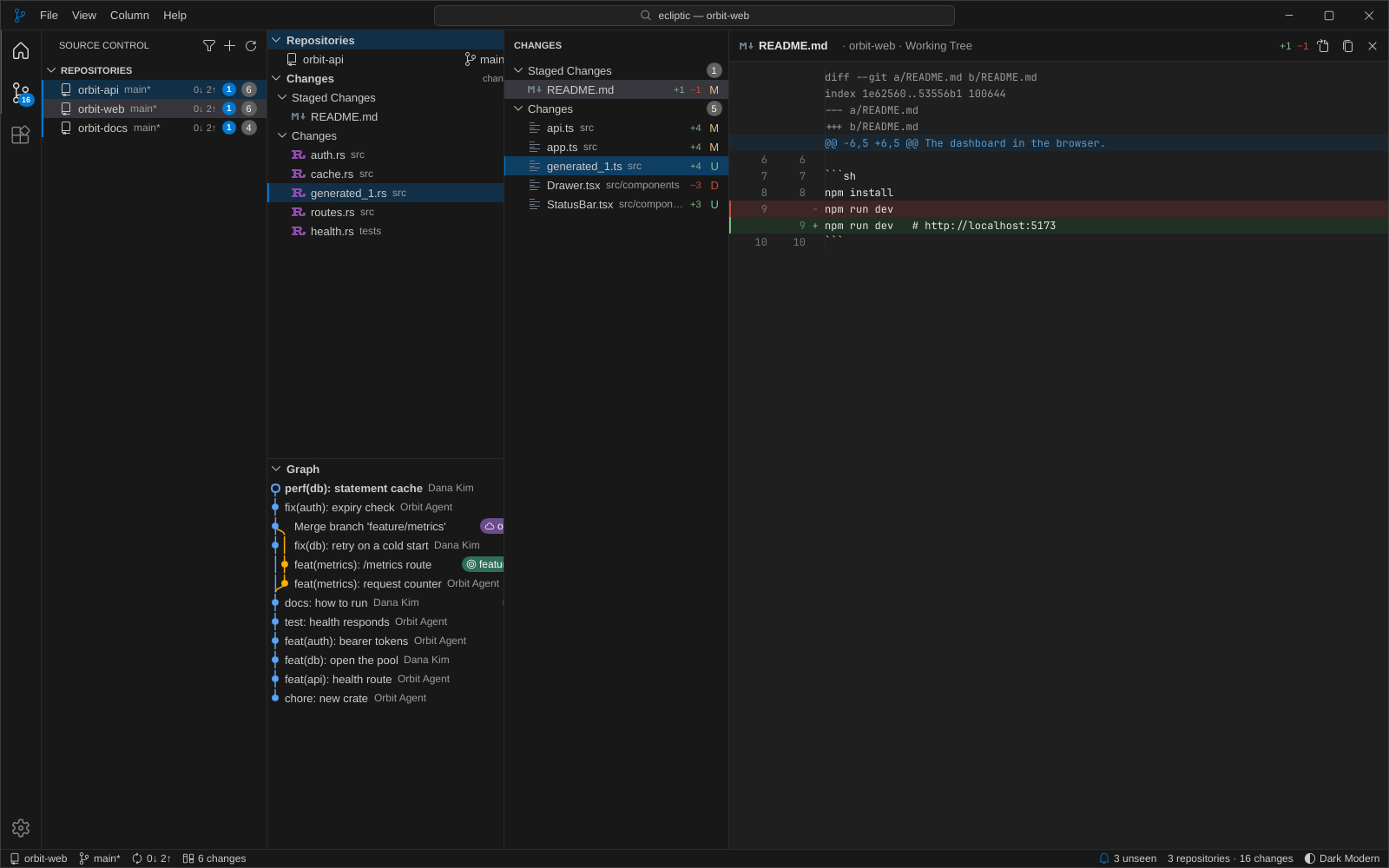
Each column is one repository, laid out like VS Code's Source Control view. Repositories shows the branch with a dirty *, its sync state and ahead and behind counts. Changes lists Staged Changes and Changes, each file with its icon, folder, lines added and removed (+12 −3) and status letter. Graph draws the last 200 commits of HEAD and its upstream.
Columns sit in two rows, like a kanban board: drag an edge to resize one, drag the line between the rows to share the height, and add columns up to 32.
Live
A file or commit that appears or changes flashes blue for two seconds, and the column's header lights up with it. Afterwards it keeps a blue mark on its left edge, and the header counts it in a badge, until you look at the column.
Each column has a worker watching its working tree, so an edit shows in about 0.1 s.
The diff drawer
Click a file or a commit and a drawer slides in from the right with its diff, as git prints it, and follows the file as agents keep editing it. Its header reads like an editor tab. Select lines, copy them as code or as a patch, or open the file in your editor.
Down the drawer's left runs a side bar with the repository's changes, or a commit's files, so the next file is a click away.
The commit graph
Lanes and merges, a ring on HEAD and pills for branches and tags, as VS Code's Source Control Graph draws them. A commit opens in the drawer like git show --stat. A collapsed Graph docks at the bottom while Changes fills the column.
Themes
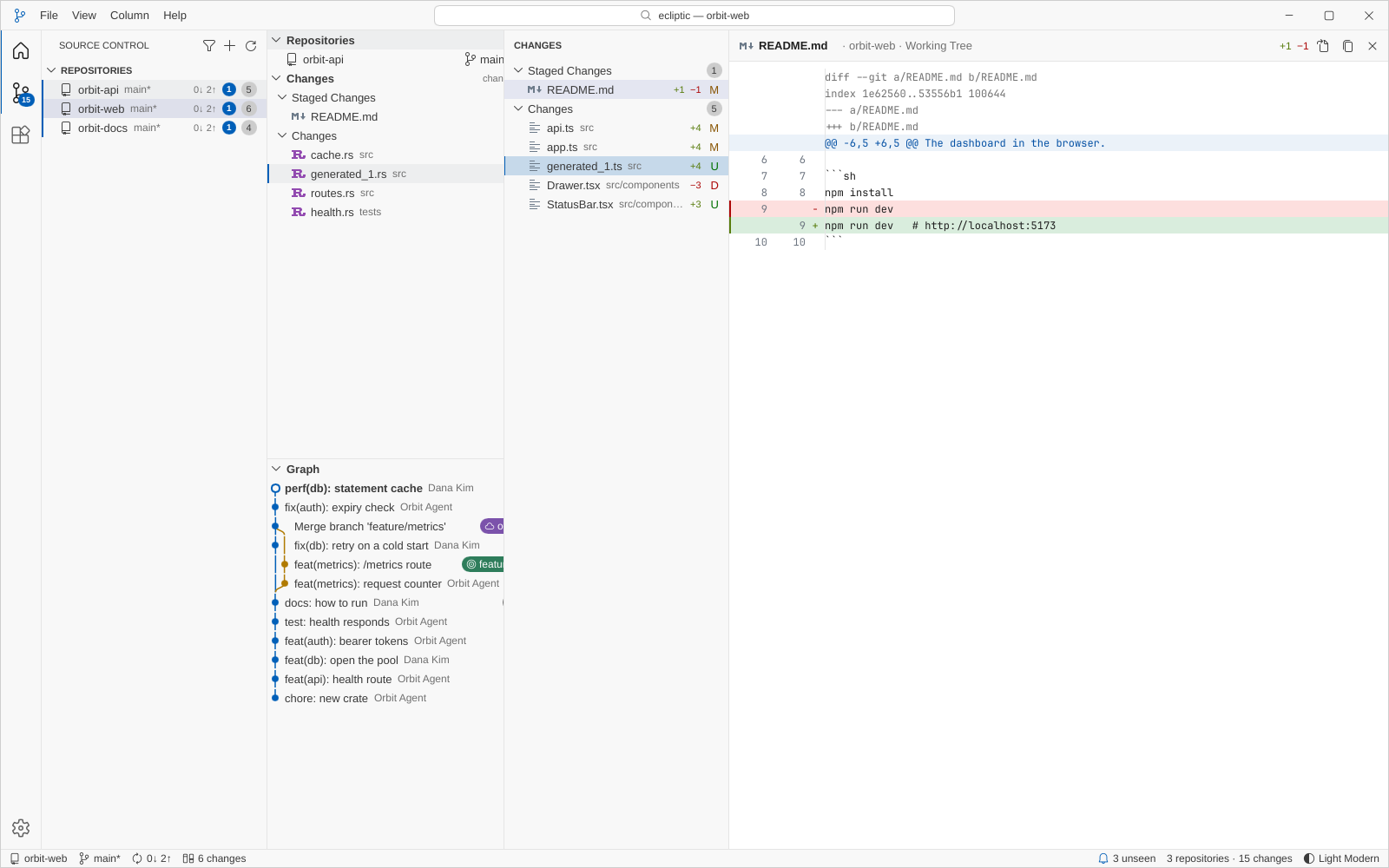
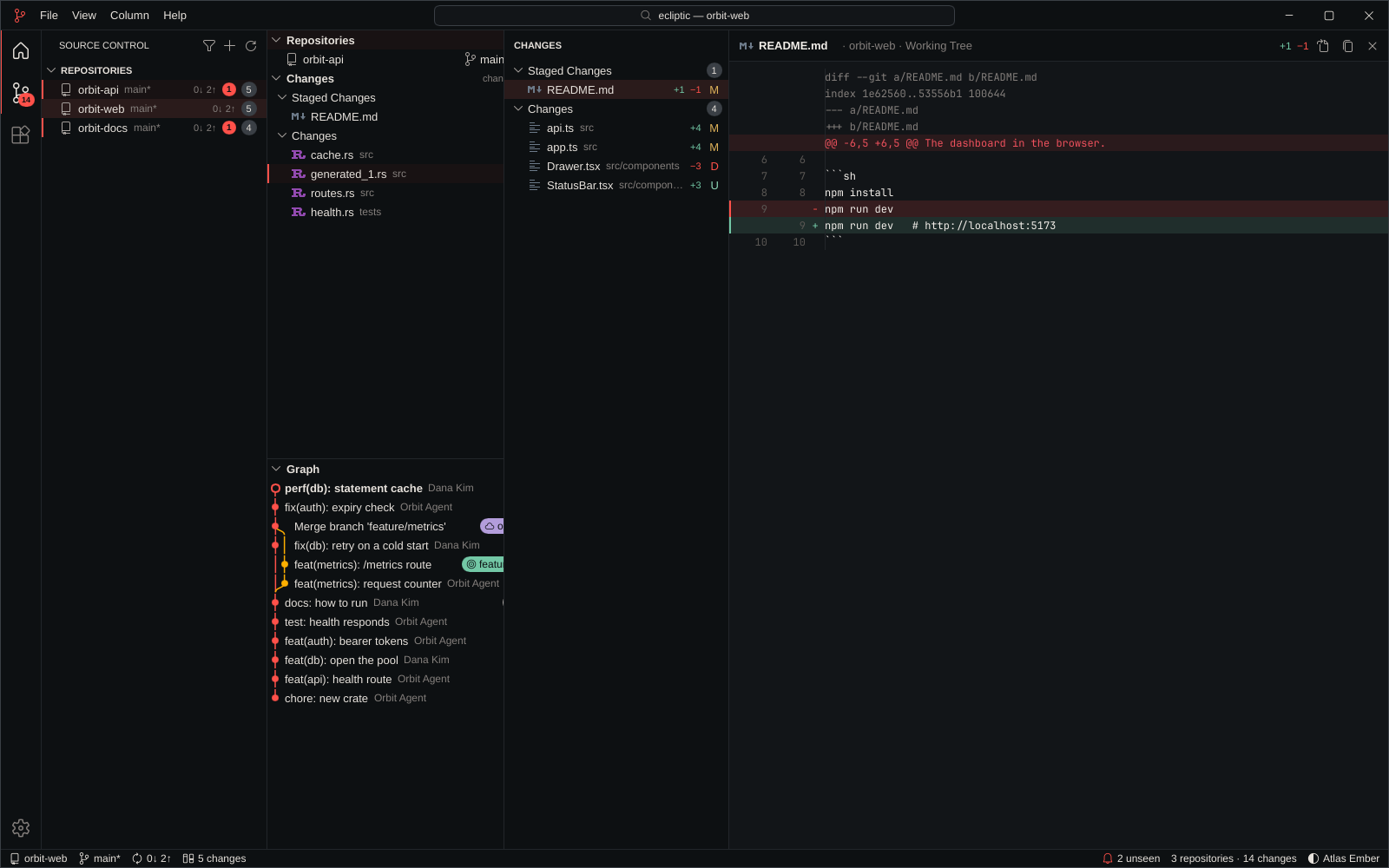
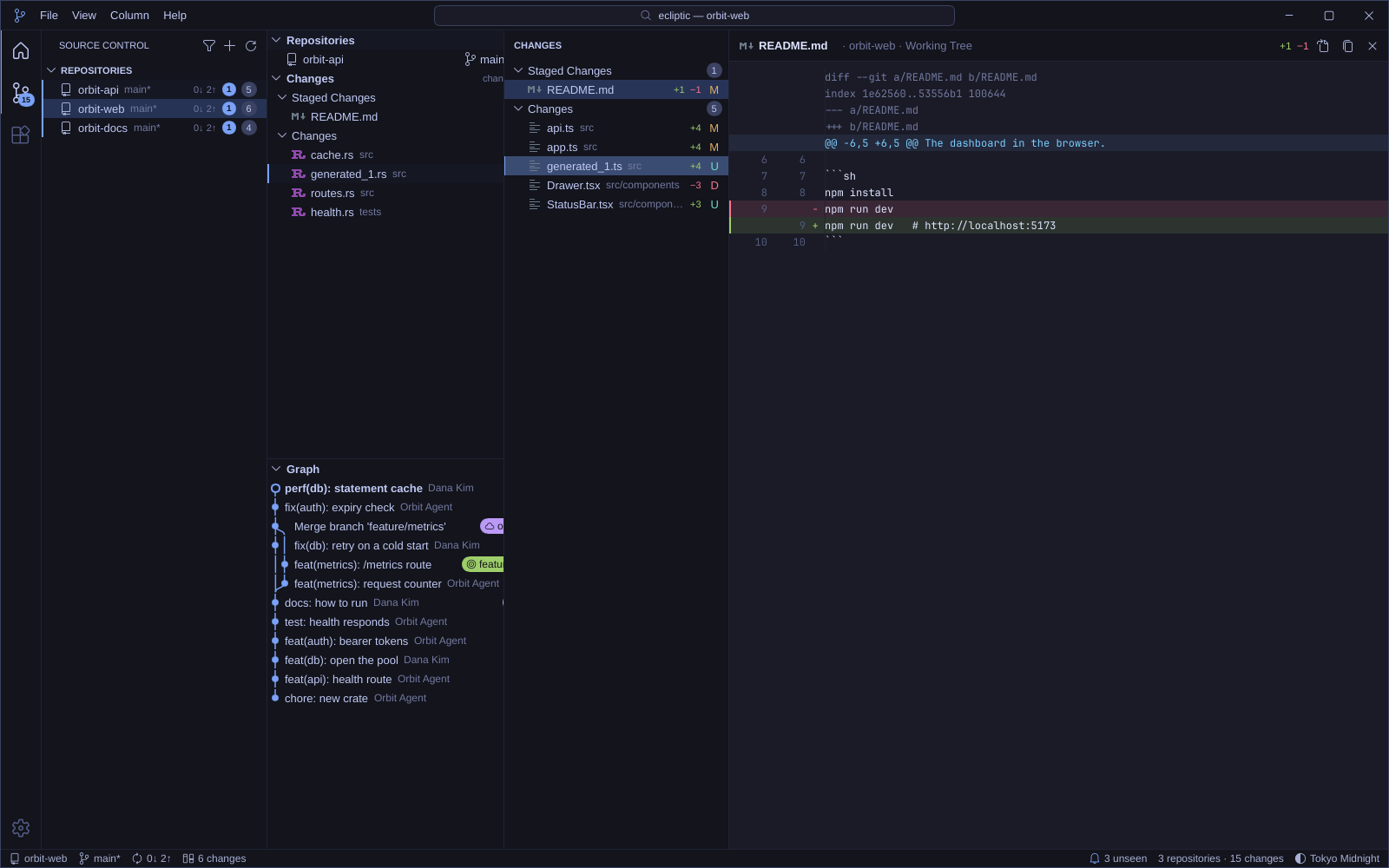
Dark Modern and Light Modern are the defaults, and the app follows the desktop's light or dark scheme. Dark+, Light+, Atlas Ember and Tokyo Midnight ship beside them. Any VS Code colour theme installs as an extension, as it is. See the four screenshots.
Extensions
Extensions work as VS Code's: a folder with a package.json that contributes themes, settings, commands, menu entries, keybindings and views, and, if it needs one, a process in any language that talks to the app over JSON-RPC. It can put items in the status bar, fill views, mark files, show text in the drawer, open columns and run commands, and it hears of every change in every column. The extensions guide.
Keyboard
Every action is a command with a VS Code id, and the Command Palette (Ctrl+Shift+P) runs any of them by name. keybindings.json changes the keys in VS Code's spelling, chords included, and the Keyboard Shortcuts page lists what is in effect and where each binding came from. The shortcuts.
Settings
settings.json as VS Code keeps it, with comments and trailing commas, and a Settings editor with a search box over it. A change applies at once, from the editor or from any other. Every setting.
Read-only, and light
ecliptic never writes to a repository: git runs with optional locks and the diff index refresh off, so it never takes index.lock from under an agent. One worker per column watches the working tree and refreshes once changes settle. No timers: an idle repository costs nothing, even one with 485k files, and an idle window draws no frames.
Measured on a Firefox checkout (485k files, 1M commits) and seven columns, before and after the performance work
Measured on a Firefox checkout, seven columns
before
after
Refresh after an edit (Firefox)
8.2 s
0.19 s
Refresh after an edit (small repo)
12 ms
2 ms
Edit to snapshot
300 ms
100 ms
Idle model tick, 10k changed files × 7
95 ms
1 µs
UI thread, hovering rows
31%
4%
UI thread, scrolling continuously
74%
15%
Idle
0% CPU, 0 frames/s
the same
The release build, with two columns at 1600×1000: the UI thread sits below 0.5% of a core at idle, at 2.4% while the pointer sweeps the rows and at 3.4% while the graph scrolls continuously. How it stays light has the rules behind the numbers.
Themes
The same three columns in four of the shipped themes. The colours come from extensions in VS Code's own theme format; the app itself knows only the two defaults.
Dark Modern, the default.Light Modern, the default while the desktop is light.Atlas Ember.Tokyo Midnight.
Download
Every release on GitHub carries the packages, each with its sha256, one SHA256SUMS for all of them, and the version's notes from the changelog. The install script does the same download and check for you.
The binary, desktop entry, icon, licence and docs. Unpack it and run ./install.sh, which puts them under ~/.local (PREFIX for elsewhere).
Needs glibc 2.35 or newer with fontconfig and freetype, which every desktop has.
macOS
ecliptic-vX.Y.Z-macos.dmg
A universal ecliptic.app for Apple silicon and Intel: drag it to Applications.
Signed ad hoc, not notarized. A copy downloaded with a browser is quarantined, and macOS 15 and later asks you to allow it once: open it, dismiss the warning, then System Settings → Privacy & Security → Open Anyway. The install script's copy, downloaded with curl, carries no quarantine and opens at once.
Windows
ecliptic-vX.Y.Z-x86_64-windows.msi
ecliptic-vX.Y.Z-x86_64-windows.zip
The MSI installs per user, with a Start Menu entry, a PATH entry and no administrator prompt. The zip holds the portable ecliptic.exe.
Unsigned, so a browser download gets SmartScreen's prompt once (More info → Run anyway); the install script unblocks what it downloads. Needs Git for Windows.
ecliptic needs git on PATH to run. Or build from source on any of the three: cargo build --release in a checkout.